
Setup mail domain
1. Log in to the Mailu Admin UI
Open your browser to your admin URL, e.g.
https://mail.hrdtechnology.com/admin
Sign in with your admin credentials.
2. Navigate to the “Domains” Section
On the left‑hand menu, click “Domains”. This page shows all domains Mailu knows about.
3. Add a New Domain
-
Click the “+ Add Domain” button.
-
In the form that appears:
-
Domain name: enter your domain (e.g.
hrdtechnology.com) -
Description (optional): e.g. “HRD Technology primary mail domain”
-
Catch‑all address: leave blank (unless you want all unknown addresses forwarded)
-
-
Click “Save”.
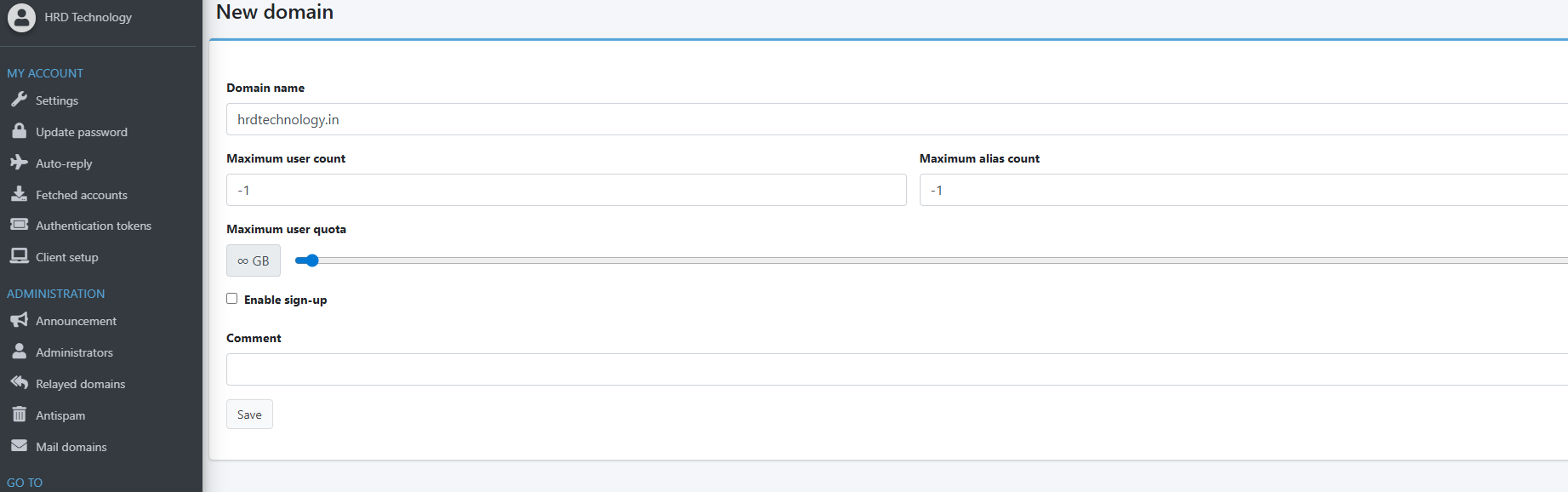
4. Configure DNS Records
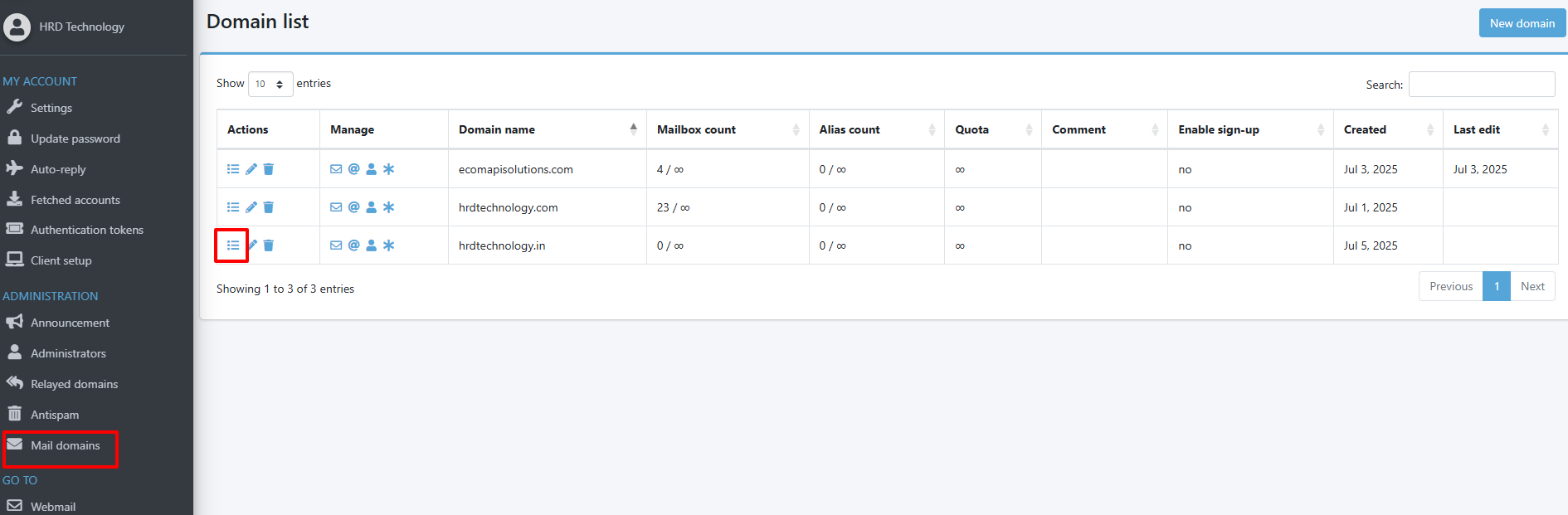
Once the domain is created. Mailu will display all the domain list select the domain list that you want to setup the dns
Once you click on that it will show the dns record page like bellow, generate the generate keys button to generate the dkim key (it will prevent mail to goes in span)
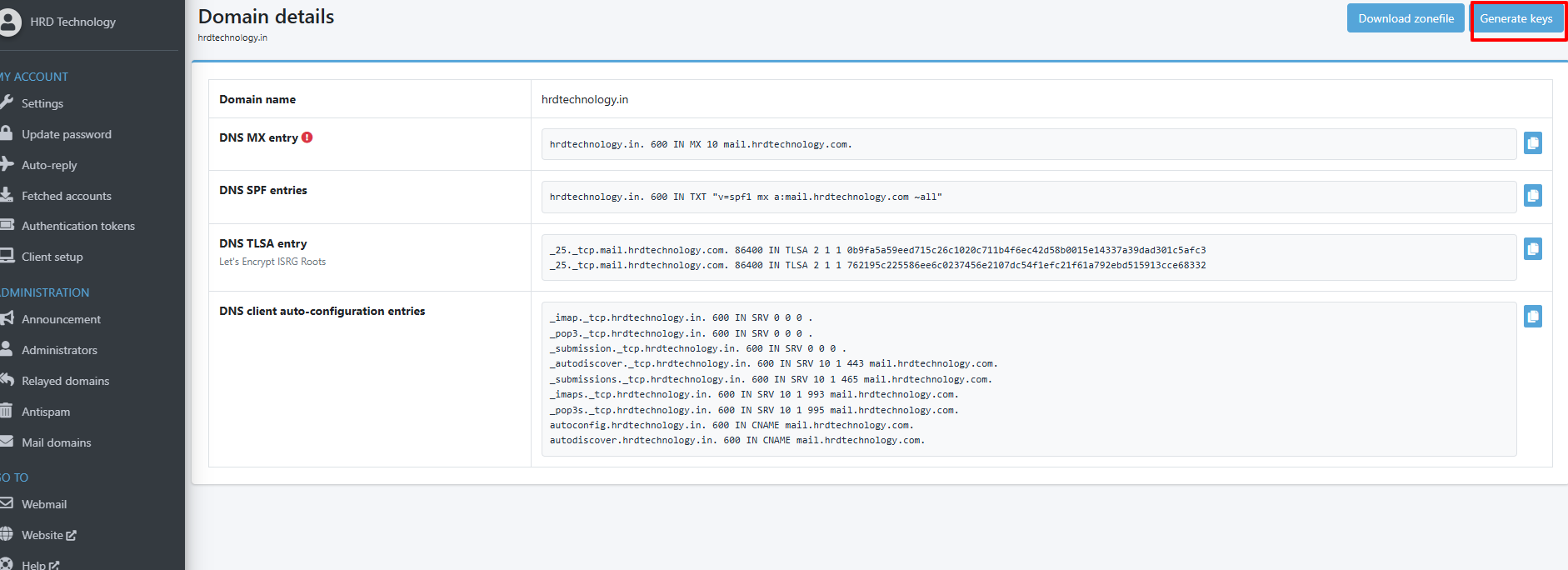
Once you generated the keys click on download zone file, mail will download the zone file like
Open your browser to your admin URL, e.g.